

This post is part 2 in an engineering blog series about building on top of the Mixmax SDK. See part 1 here.
Let’s walk through step-by-step how to build a new /giphycats command using the Mixmax SDK. This command is a spin on the built-in /giphy command that appends the word “cat” to Giphy searches. After all, your email needs more cats.
-
Ensure that you have git and node (>=0.12) installed on your system
-
Check out the open source Giphy Mixmax command by running
git clone https://github.com/mixmaxhq/giphy-example-slash-command -
Inside the directory, run
npm installand thennpm start. You shouldn’t see any errors and it should say[nodemon] starting `node server.js` -
Restart Chrome in a special temporary mode so the self-signed HTTPS urls. See here.
-
Verify it’s working by visiting https://localhost
/typeahead?text=happy and https://localhost/resolver?text=happy in your browser. It should show JSON results. -
Click Add Slash Command and enter the following values:
Input Name
Value
Name
Giphy Cats
Command
giphycats
Parameter placeholder
[search]
Typeahead API URL
https://localhost:9145/typeahead
Resolver API URL
https://localhost:9145/resolver
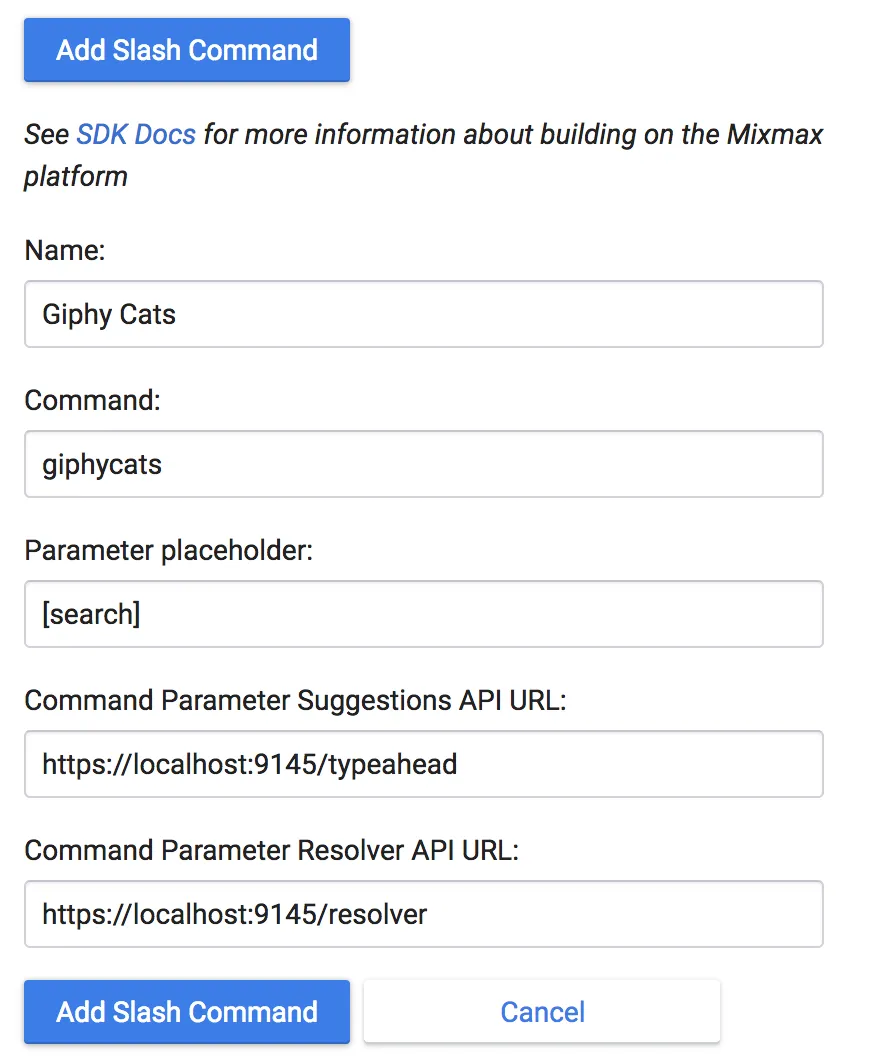
Now refresh Gmail and you should be able to type /giphycats in a new Mixmax window:
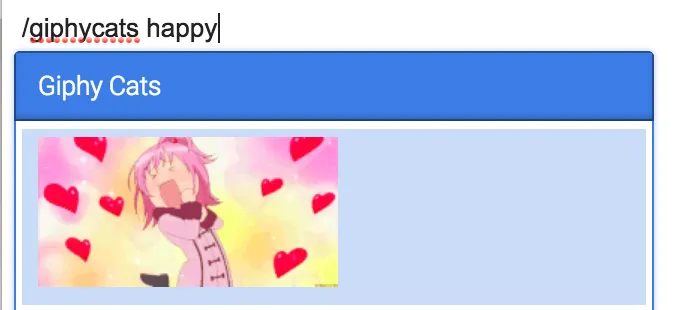
However, this command isn’t living up to its name - it needs cats! Let’s fix that. Open up the file api/typeahead.js and replace the line q: term, with q: term + ' cats',. Now all search terms will be automatically appended with the word cats. Now try:
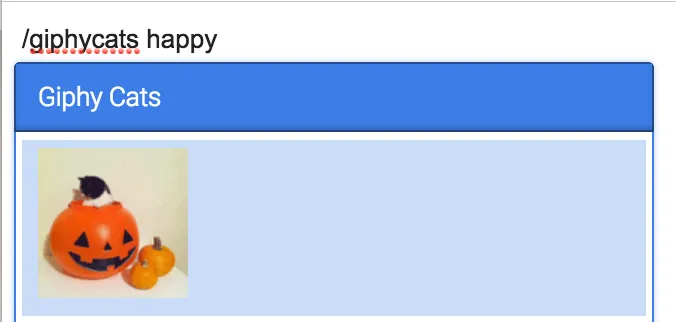
Much better! Now you have more cats in your email. Feel free to explore around and implement a Slash Command of your own.
Use cases:
- customer support at your company can type
/kb <search term>to bring up a list of knowledgebase articles to insert a link to in the email - any Mixmax user can search your product catalog by typing
/yourbrand <search term>to share a link with their friends
Interested in working on an email platform of the future? Email us at hello@mixmax.com and follow us @Mixmax.