







Sending a link to an external form is a great way to kill momentum. That extra click adds friction and slows everything down when speed is what you really need. There's a better way to get answers without making people leave their inbox. This guide shows you exactly how to embed a survey in Gmail. Using one-click polls and surveys directly in your email helps you get quick, structured replies. It's the easiest way to gather feedback, qualify leads, and keep deals moving forward.
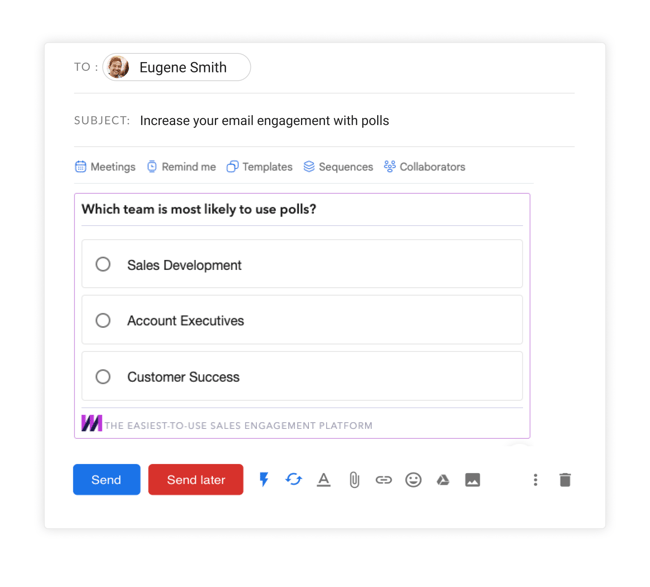
Polls enable you to ask a question and have the recipients pick one option among several. They’re great for quick answers to simple questions, because your recipients don’t need to write a reply. They just click a button, and their response is sent directly back to you.
 Q&A Surveys help you ask focused questions and make it easy for recipients to respond to your questions using free-form text. When a recipient answers your survey, you receive the response immediately via email. They’re great for customer support, dealing with suppliers, or just getting straight answers.
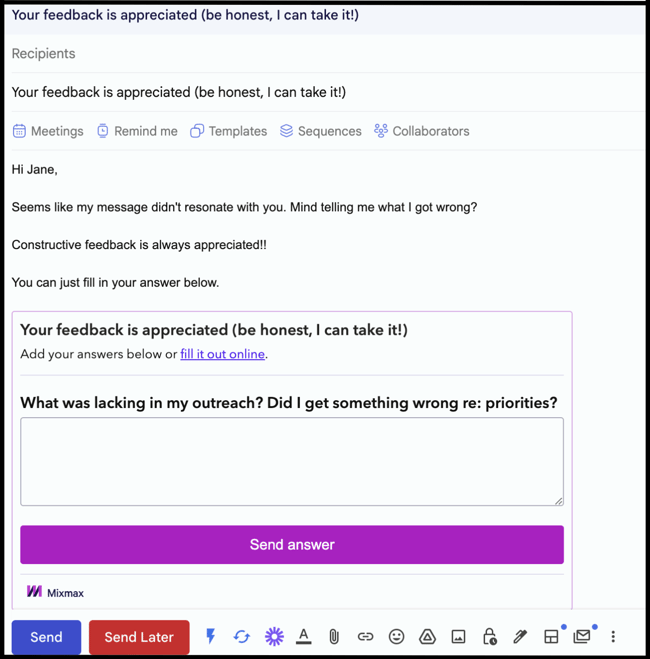
How to Embed a Survey in Gmail
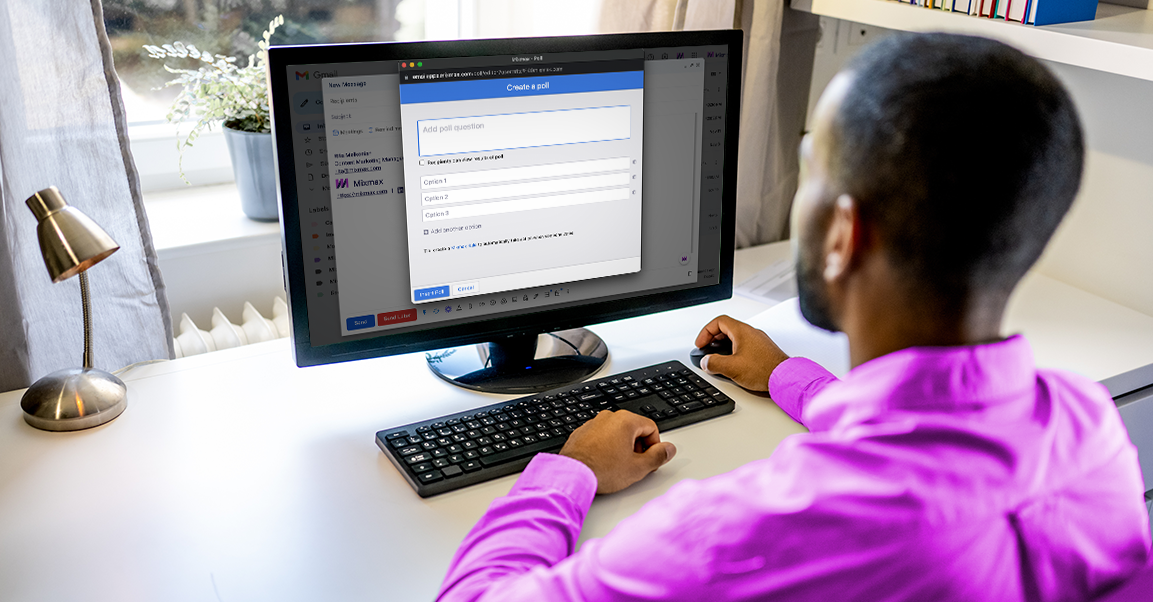
To add a Poll or a Q&A Survey, start by going to the Mixmax icon at the bottom of your Gmail Compose window. You’ll see a menu of Mixmax apps that can insert enhanced content into your message. In this menu, select Poll or Q&A Survey.
You can also type "/poll" or "/survey" as a shortcut.
.png?width=650&height=406&name=Polls%20and%20surveys%20app%20Mixmax%20(1).png)
By clicking on "Poll" or "Survey," it will bring up a new window for you to add your options.
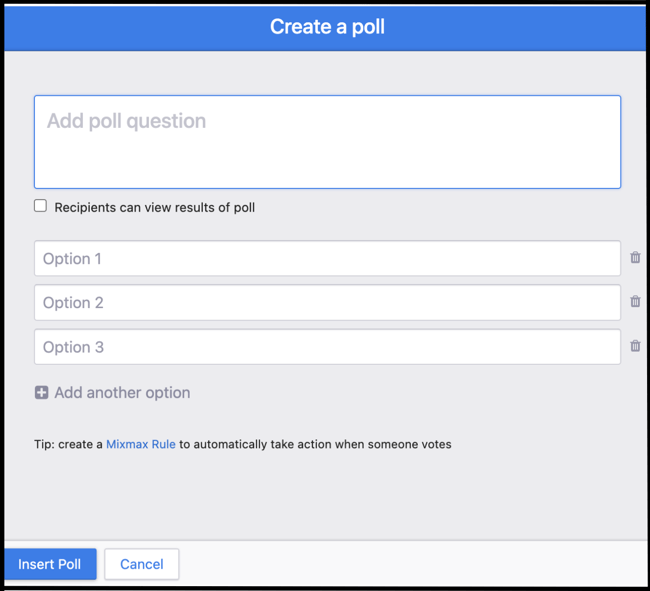
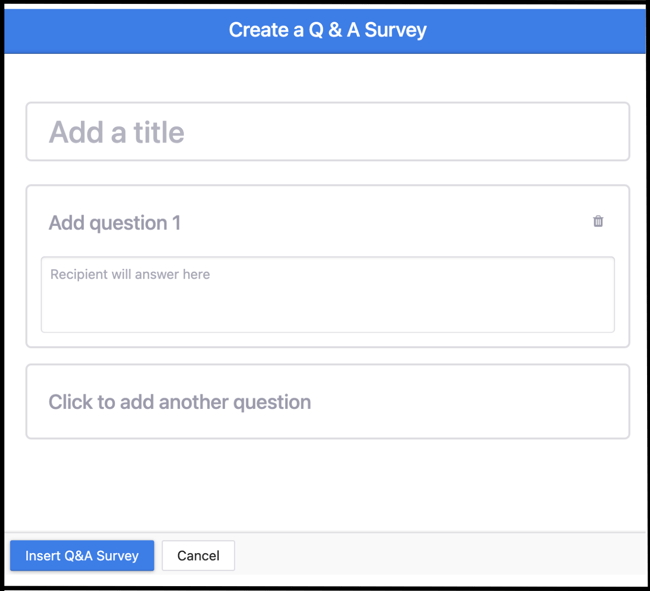
Once you’re done, click Insert Poll or Insert Survey and it’ll appear right in your message.
Your recipient will be able to vote on a poll and answer a survey directly in their email.
When a recipient votes on your poll or fills out your survey, you’ll receive the response immediately via email.
Install Mixmax for free to try it out all the neat email enhancement features.
## Why Embed a Survey Directly in an Email? Sending a link and asking someone to click it adds an extra step—and extra friction—to the process of getting feedback. Every additional click is a chance for your recipient to get distracted or decide it’s not worth their time. Embedding a survey directly into the body of your email removes that barrier. It allows people to respond instantly, right from their inbox, which can dramatically improve your engagement. Instead of asking them to go somewhere else to perform a task, you bring the task directly to them. This simple change respects their time and makes it incredibly easy for them to give you the information you need, turning a potential chore into a simple, one-click interaction. ### Improve Your Response Rates The primary reason to embed a survey is to get more people to actually fill it out. When the questions are right there in the email, recipients can answer immediately without navigating to a new tab or window. This convenience is powerful. According to some studies, embedding surveys can increase response rates by a significant margin, with some sources suggesting a 20-40% improvement. Other data shows that using interactive elements like polls and surveys can make people respond to your emails 20-25% more often. For sales teams, this means getting faster feedback on proposals, quicker scheduling confirmations, and more valuable customer insights without the usual hassle of follow-ups. It’s a straightforward way to get better data by making it easier for people to respond. ## Does Gmail Have a Built-in Survey Feature? If you’re looking for a native, built-in survey tool within Gmail, you won’t find one. Gmail itself does not have a feature that allows you to create and embed a poll or survey directly into the body of an email. While you can certainly type out questions, there’s no integrated function to add interactive buttons or forms for a seamless user experience. This limitation is why a variety of third-party tools and workarounds have become so popular. To get this functionality, you need to look outside of Gmail’s standard features and use either another Google product, like Google Forms, or a dedicated extension or platform that integrates with your inbox to add these capabilities. ## Methods for Embedding a Survey in Gmail Since Gmail doesn't offer a native survey tool, you'll need to use an external application to create and embed one. There are three common approaches you can take, each with its own set of benefits depending on your needs. You can use Google's own ecosystem with Google Forms, which offers a free and relatively simple way to get the job done. Alternatively, you can use a dedicated sales execution platform that builds this functionality directly into your Gmail compose window, offering a more integrated experience for sales professionals. Finally, a variety of other third-party extensions are available that specialize in adding polls and surveys to emails. ### Method 1: Using Google Forms Google Forms is a free and versatile tool that’s part of the Google Workspace suite. It’s a popular choice because it integrates well with other Google products and is straightforward to use. You can create a wide range of surveys, from simple multiple-choice questions to more complex forms with short-answer fields. The key advantage is that Google Forms provides a specific option to embed the entire form directly into an email. This means your recipients can see and fill out all the questions without ever leaving their inbox, making it a solid choice for internal communications or simple customer feedback collection where you want to keep everything within the Google ecosystem. #### How to Embed a Google Form in Gmail First, create your survey in Google Forms. Once it’s ready, click the "Send" button in the top-right corner. A dialog box will appear with options for sharing. Select the email tab (represented by an envelope icon). Here, you’ll see a checkbox labeled "Include form in email." Make sure you check this box. Then, you can enter the recipient's email address, a subject line, and a brief message. When you hit "Send," the form will appear directly in the body of the email for anyone using Gmail, allowing them to submit their responses without clicking an external link. ### Method 2: Using a Sales Execution Platform For sales teams, embedding surveys isn't just about collecting feedback—it's about driving deals forward. This is where a sales execution platform like Mixmax becomes essential. These tools are designed to work where sellers work: right inside their Gmail inbox. Instead of being a separate application, Mixmax adds powerful features like polls and surveys directly into the email compose window. This allows reps to quickly gauge a prospect's interest, confirm meeting topics ahead of time, or gather post-demo feedback without ever switching tabs. The entire process is built for speed and efficiency, helping reps get the answers they need to act faster and maintain momentum with their accounts. #### Embedding Polls and Surveys with Mixmax With Mixmax, adding a poll or survey is as simple as clicking a button in your compose window. You can select "Poll" for single-choice questions or "Q&A Survey" for open-ended text responses. A window pops up where you can type your question and define the answer options. Once you insert it, the poll or survey appears as a clean, interactive element in your email. When a recipient responds, you get an email notification immediately. This instant feedback loop is perfect for sales workflows, and you can even use AI-powered workflows to trigger next steps based on their answers, ensuring no opportunity is missed. ### Method 3: Using Other Third-Party Extensions Beyond Google Forms and integrated sales platforms, there is a broad market of third-party extensions designed specifically to add interactive elements to your emails. These tools often focus on one thing and do it well, whether it's creating polls, surveys, or other engaging content. They typically install as a browser extension and add a new button or menu to your Gmail compose window, similar to how Mixmax works. These can be a good option if you only need survey functionality without the broader feature set of a full sales platform, or if you're looking for a specific type of survey that other tools don't offer. #### Examples of Other Survey Tools Several extensions are available on the Chrome Web Store that can help you create and embed surveys in Gmail. For instance, tools like GMass allow you to create interactive, in-email polls that recipients can answer with a single click. Many of these extensions offer free tiers with basic functionality, making them accessible for individuals or small teams who want to experiment with in-email surveys. While they may not offer the deep CRM integration or advanced analytics of a sales execution platform, they provide a straightforward way to make your emails more engaging and gather quick feedback from your audience. ## Potential Compatibility Issues to Be Aware Of While embedding surveys directly in email is a powerful technique, it’s not without its technical limitations. The biggest challenge is that not all email clients render interactive content in the same way. What looks perfect in Gmail might appear broken or not work at all in another email provider. It's important to be aware of these potential issues before you send your survey to a wide audience. Understanding these limitations will help you set realistic expectations and choose the best method for your specific list of recipients, ensuring that everyone has a good experience, even if it means some people will just see a link to the survey instead. ### Email Client Limitations The most significant compatibility issue comes from the email clients your recipients use. Embedded Google Forms, for example, work seamlessly for users who are also on Gmail. However, for recipients using other providers like Yahoo or Outlook, the experience can be different. These email clients often don't support embedded forms, and instead of seeing the interactive survey, the user will see a fallback message with a link to view the form in a web browser. This is a critical consideration if you have a diverse email list, as a portion of your audience will still need to take that extra step to click a link. ### Types of Embedding: Full Form vs. First Question Not all survey tools embed content in the same way. While Google Forms allows you to embed the entire survey, some other platforms take a different approach. For example, a service like SurveyMonkey often allows you to embed only the first question of your survey into an email. When the recipient clicks an answer, they are then taken to a webpage to complete the rest of the survey. This method can still be effective at capturing initial engagement, as the first click is easy, but it doesn't fully eliminate the need for the user to leave their inbox. It’s a hybrid approach that balances interactivity with broader email client compatibility. ### The Submission Confirmation Page It's also important to manage expectations about what happens after a recipient fills out an embedded survey. Even for Gmail users who can complete a Google Form entirely within their email, the final step often involves a redirect. After they click the "Submit" button, they are typically taken to a separate confirmation webpage. This page confirms that their response has been recorded. While the core task of answering the questions happens in the inbox, the process isn't entirely contained there. This final step is a standard part of how most embedded forms work and ensures the user knows their submission was successful. ## Best Practices for Higher Response Rates Simply embedding a survey in your email doesn't guarantee success. To truly maximize your response rates, you need to think strategically about your entire email, from the subject line to the audience you're sending it to. The goal is to make the experience as relevant and frictionless as possible. This involves optimizing your messaging to grab attention in a crowded inbox and ensuring that the questions you're asking are directed at the right people. By following a few best practices, you can significantly improve the chances that your recipients will not only open your email but also take the time to respond to your survey. ### A/B Test Your Subject Lines Before anyone can answer your survey, they have to open your email. Your subject line is the single most important factor in that decision. Don't just settle for a generic subject like "Please take our survey." Instead, try out different subject lines to see what resonates with your audience. You could test a direct approach against a more creative or benefit-driven one. For example, you might compare "Feedback on your recent purchase" with "Help us improve: a 2-minute survey." Most email platforms, including sales execution tools, allow you to test variations to see which one gets more opens, giving you valuable data to optimize future sends. ### Segment Your Email Lists Not every survey is relevant to every person on your email list. Sending a generic survey to your entire audience is a surefire way to get low response rates and irrelevant data. Instead, you should group your subscribers into different segments based on their behavior, demographics, or purchase history. For example, you could send a post-purchase feedback survey only to recent customers or a product feature survey only to power users. This ensures that the questions you're asking are highly relevant to the recipient, which makes them far more likely to respond. It also provides you with much more targeted and actionable insights. ## Managing and Analyzing Survey Responses Sending the survey is only the first half of the process. Once the responses start coming in, you need an efficient way to collect, manage, and analyze them. The right setup can mean the difference between having a pile of disorganized data and having clear, actionable insights that can inform your business decisions. Whether you're using a simple spreadsheet or the analytics dashboard of a more advanced platform, having a plan for your data is crucial. This includes everything from how you'll organize the responses to how you'll identify who said what, and how you can save time on future surveys. ### Collecting Responses in a Spreadsheet For many, a spreadsheet is the most straightforward way to manage survey data. If you're using Google Forms, this process is incredibly simple. You can link your form directly to a Google Sheet, and every new response will automatically populate as a new row in the sheet. This creates a clean, organized, and real-time database of all your feedback. From there, you can easily sort, filter, and create charts to visualize the data and identify trends. This direct integration is one of the biggest advantages of using Google Forms and makes the data analysis process much more manageable, especially for larger surveys. ### Identifying Who Responded By default, many surveys are anonymous. If you need to know who submitted each response—which is essential for sales follow-ups or personalized customer service—you need to explicitly ask for that information. You can do this by adding a "Contact form" type of question to your survey that asks for the respondent's name or email address. Alternatively, some advanced email platforms can automatically track who responded without needing to ask, as long as the survey was sent to an individual contact. This is particularly useful for sales teams who need to log feedback in their CRM and follow up with specific prospects or customers based on their answers. ### Using Templates and Custom Branding If you find yourself sending the same types of surveys repeatedly—such as post-demo feedback or customer satisfaction check-ins—creating templates can save you a massive amount of time. Many survey tools and sales platforms allow you to save your polls and surveys as templates so you can reuse them with just a few clicks. This not only ensures consistency in your questioning but also lets you maintain your company's branding with custom colors and logos. Using templates means you don't have to start from scratch every time, allowing you to focus your energy on analyzing the results and acting on the feedback you receive. ## Practical Use Cases for Embedded Surveys Embedded surveys are incredibly versatile and can be used across various business functions to gather information quickly and efficiently. For sales and customer-facing teams, they are particularly valuable for maintaining engagement and gathering real-time feedback throughout the customer lifecycle. From the initial point of contact to long after a deal is closed, a quick poll or survey can provide the insights needed to move a conversation forward, improve a process, or strengthen a customer relationship. These practical applications show how a simple, interactive element in an email can solve real-world business challenges and make your communications more effective. ### Gathering Event RSVPs Planning a webinar, workshop, or client event? An embedded poll is one of the fastest ways to get a headcount. Instead of asking people to click a link to a landing page, you can ask them directly in the email: "Will you be joining our webinar on Thursday?" with simple "Yes" or "No" buttons. This makes it incredibly easy for people to RSVP with a single click, giving you a quick and accurate count of attendees without the friction of a formal registration page. It's a simple but effective way to handle logistics for smaller, more informal events. ### Collecting Post-Purchase Feedback Immediately after a customer makes a purchase is a critical moment to gather feedback. You can automate an email with an embedded survey asking about their buying experience. Questions like "How would you rate your checkout experience?" or "Did you find everything you were looking for?" can provide valuable insights into potential friction points in your sales process. This not only helps you improve your operations but also shows the customer that you value their opinion, which can help increase loyalty and turn a one-time buyer into a repeat customer. ### Conducting Market Research Embedded surveys are a great tool for conducting quick and informal market research. You can ask your audience directly about what new products or features they'd like to see, how they currently use your services, or what challenges they're facing in their industry. For example, a B2B software company could send a survey to a segment of users asking them to vote on which new integration they'd find most valuable. This kind of direct feedback is invaluable for prioritizing your product roadmap and ensuring that you're building things that your customers will actually want to use. ### Identifying Product Bugs No product is perfect, and your customers are often the first to discover bugs or issues. An embedded survey provides an easy, low-friction way for them to report problems. You can include a simple Q&A survey in your customer newsletters or support emails asking, "Have you experienced any issues with our latest update?" This proactive approach can help you learn about bugs much faster than waiting for customers to file a formal support ticket. It shows you're actively listening and committed to providing a high-quality product, which can build significant trust and goodwill with your user base.Frequently Asked Questions
Does Gmail have its own survey feature? No, Gmail does not have a built-in tool for creating or embedding polls and surveys. To add interactive elements like these to your emails, you need to use an external tool. Your options range from using Google Forms to integrating a dedicated platform like Mixmax that adds this function directly into your compose window.
Will my embedded survey work for everyone, regardless of their email client? Not always. Compatibility depends on the recipient's email provider. An embedded survey will display and work perfectly for anyone opening your email in Gmail. However, some other clients, like certain versions of Outlook, may not support interactive content. In those cases, the recipient will typically see a fallback link that takes them to the survey in a web browser.
What's the real advantage of embedding a survey instead of just linking to one? The main advantage is removing friction. Every extra click you ask someone to make is a chance for them to get distracted or abandon the task. By putting the survey directly in the email, you make it incredibly easy for someone to respond with a single click, right from their inbox. This convenience often leads to significantly higher response rates.
Can I see which specific person gave which answer? Yes, if you use the right tool. When you send a poll or survey with a platform like Mixmax, the responses are tied to the individual recipient's email address. You get an immediate notification telling you who responded and what they said. This is essential for sales teams who need to follow up based on a prospect's specific feedback.
What's the difference between a poll and a Q&A survey in Mixmax? A poll is best for getting a quick answer to a simple, multiple-choice question. For example, you could ask a prospect to choose their top priority from a list of three options. A Q&A survey is designed for open-ended questions where you need a free-text response, like asking for detailed feedback after a product demo.
Key Takeaways
- Remove friction to get faster answers: Embedding a poll directly in an email eliminates the extra click to an external form. This simple change makes it easier for people to respond, which improves your response rates and keeps conversations moving.
- Choose your tool based on your workflow: Gmail has no built-in survey feature, so you need an external tool. Google Forms works for simple tasks, but a sales platform like Mixmax adds polls and surveys directly into your Gmail compose window, so you never have to switch tabs.
- Optimize your email for engagement: An embedded survey only works if people open your email first. A/B test your subject lines to find what works, and segment your audience to make sure your questions are relevant to the person receiving them.



.png?width=450&height=250&name=Image%20Light%20Version%20(1).png)